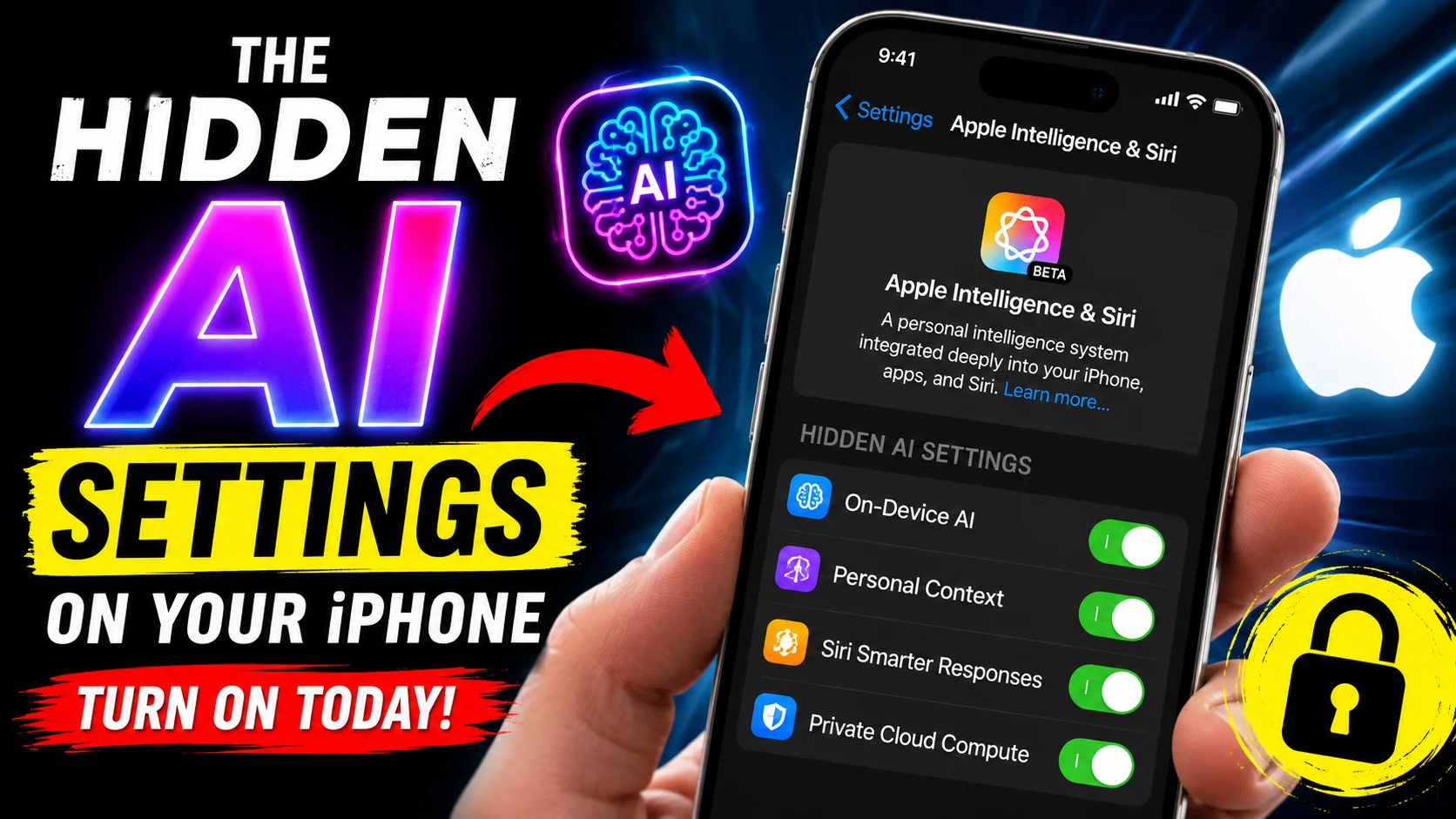
For users with an iPhone 15 Pro, iPhone 16, or iPhone 16 Pro, Apple Intelligence has finally arrived. However, Apple hasn’t enabled everything automatically. To protect your privacy and ease you into the AI era, several of these game-changing tools are buried deep within your device’s menus.
Here are the hidden AI settings on your iPhone you need to turn on right now to unlock its full potential.
1. The Master Switch: Enable Apple Intelligence
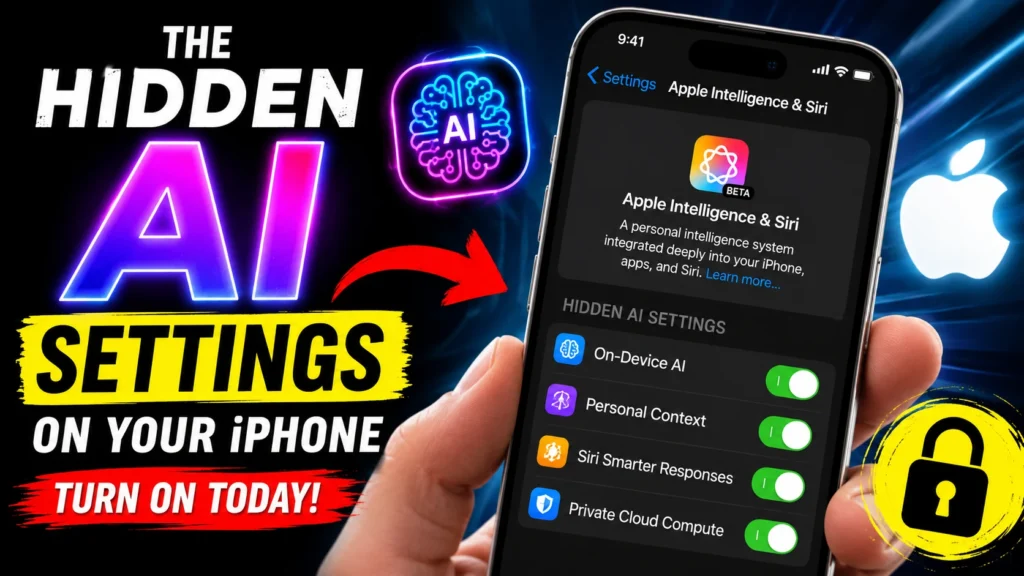
Before you can use any of the new tools, you need to flip the master switch. Because Apple is rolling out these features gradually, they require a manual opt-in.
- How to do it:Go to Settings > Apple Intelligence & Siri.
- The process: Toggle on Apple Intelligence. If you haven’t done this before, you might be asked to join a brief waitlist.
- Pro tip:Ensure your device language and Siri language are set to US English (or your supported regional English) to ensure the features download correctly.Once activated, a glowing animation around your screen’s edges will indicate that the new, AI-powered Siri is ready.
2. Notification Summaries: Silence the Noise
We all know the dread of returning to our phones after an hour-long meeting, only to find 47 messages from a family WhatsApp group and a dozen promotional emails. Instead of forcing you to scroll through every single ping, Apple Intelligence can read them all and deliver a crisp, two-sentence summary.
- How to do it: Go to Settings > Notifications > Summarize Previews.
- Why it matters: It intelligently groups context. Instead of reading “Okay,” “See you then,” and “Bring snacks,” your lock screen will simply say: “The group agreed to meet at 6 PM; you need to bring snacks.” It’s a massive time-saver for anyone suffering from notification fatigue.
3. ChatGPT Integration: Give Siri a Superpower
Siri has received a major upgrade, including better conversational context and the ability to understand you even if you stumble over your words. But for truly complex tasks—like writing a meal plan, drafting a poem, or answering complicated coding questions—Siri needs a little help.
Apple has baked OpenAI’s ChatGPT directly into the operating system, but you have to grant it permission to work.
- How to do it:Navigate to Settings > Apple Intelligence & Siri, scroll down to Extensions, and tap ChatGPT.
- The privacy factor:You do not need a ChatGPT account to use this.Apple masks your IP address, and OpenAI is barred from using your requests to train its models. It is completely free and completely private.
4. Call Recording Transcripts: Your Personal Secretary
Gone are the days of frantically scribbling notes during a doctor’s appointment or a client briefing. iOS 18 introduces native call recording. When you initiate a recording during a phone call, the other person is automatically notified for privacy reasons.
The real magic, however, happens after you hang up.
- Where it lives: The audio is saved directly to your Notes app.
- The AI touch:Apple Intelligence automatically generates an intelligently created summary of the entire transcript. It highlights the key action items and decisions made on the call, making it a dream feature for professionals and journalists alike.
5. The “Clean Up” Tool: Flawless Photos in Seconds
Have you ever taken the perfect vacation photo, only to realise a stranger walked into the background right as you tapped the shutter? The new Photos app includes an AI-powered “Clean Up” tool that removes distractions and photobombers with a single tap.
- How to use it: Open a picture in the Photos app, tap the Edit button, and select the Clean Up icon (it looks like a little eraser).
- How it works: The AI automatically highlights background subjects it thinks you might want to remove. You can tap them to make them vanish, or use your finger to brush over any object you want deleted. The software seamlessly fills in the background, saving the original quality of the image.
The Takeaway
Your iPhone is no longer just a communication device; it is a pocket-sized personal assistant. By taking five minutes today to dive into your settings and toggle on these Apple Intelligence features, you can reclaim hours of your time, drastically reduce screen-time anxiety, and let your technology actually work for you. Grab your iPhone, head to Settings, and turn on the future.
Also Read The AI Camera Feature That’s Making DSLRs Obsolete